
Common Reason Why PolyWorks Doesn’t Recognize the Probe
- Probe plugin is not copied to PolyWorks plugins directory
Solution:
Manually copy the plugin to PolyWorks plugins directory
Steps:
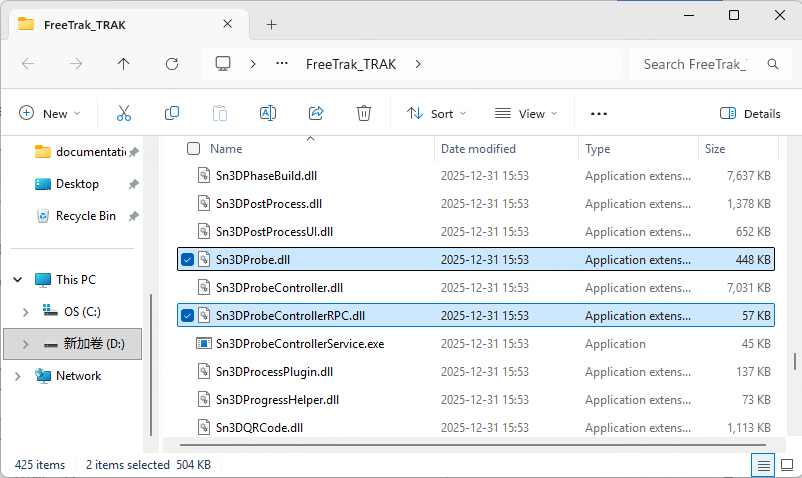
1. Locate Sn3DProbe.dll and Sn3DProbeControllerRPC.dll under the installation path of FreeScan Trak software:
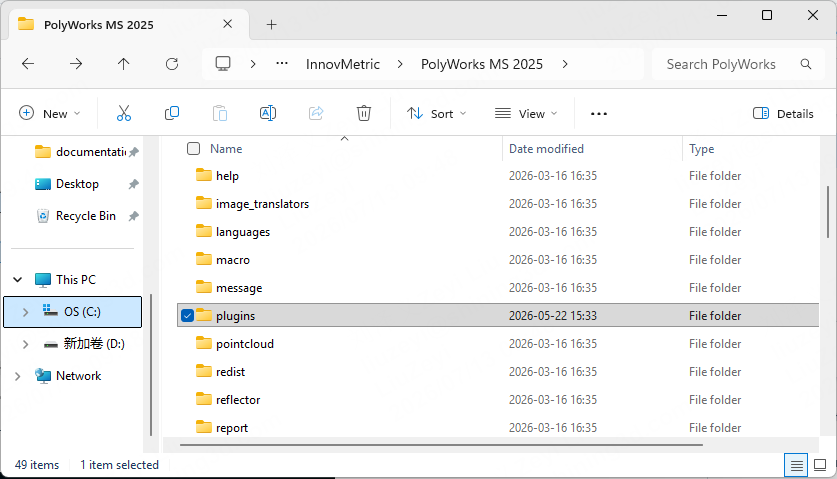
2. Go to PolyWorks installation directory and find the plugins folder: C:\Program Files\InnovMetric\PolyWorks MS 202x\plugins
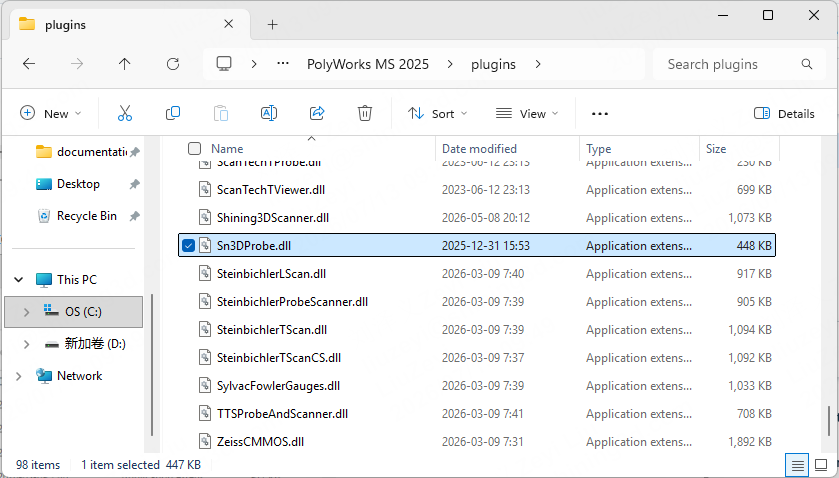
3. Copy Sn3DProbe.dll into the directory in step 2.
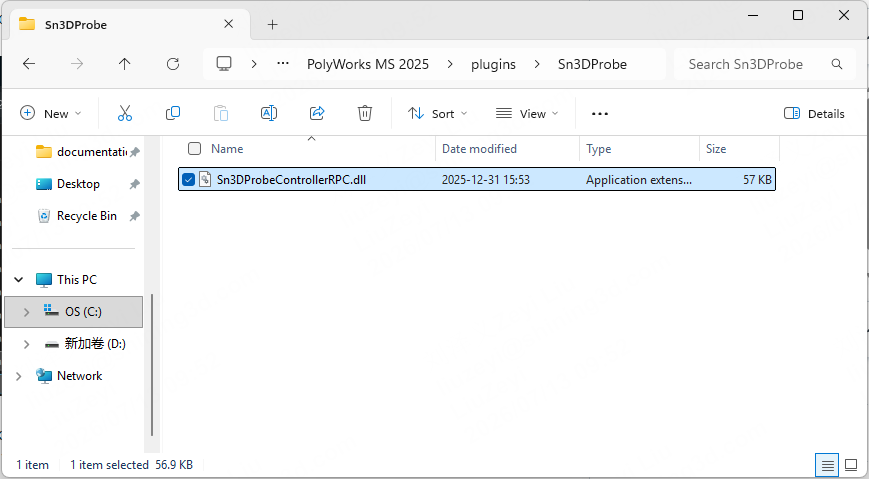
4. Create a new folder under the step 2 directory, rename it to Sn3DProbe, and copy Sn3DProbeControllerRPC.dll into this folder
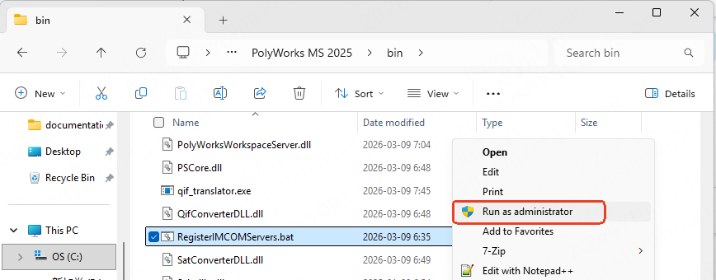
5. Enter PolyWorks installation bin folder C:\Program Files\InnovMetric\PolyWorks MS 202x\bin, and run RegisterIMCOMServers.bat as administrator. Make sure PolyWorks.exe is closed at this step.
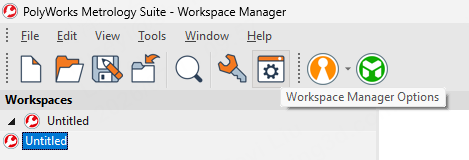
6. Run PolyWorks.exe and enter Workspace Manager Options.
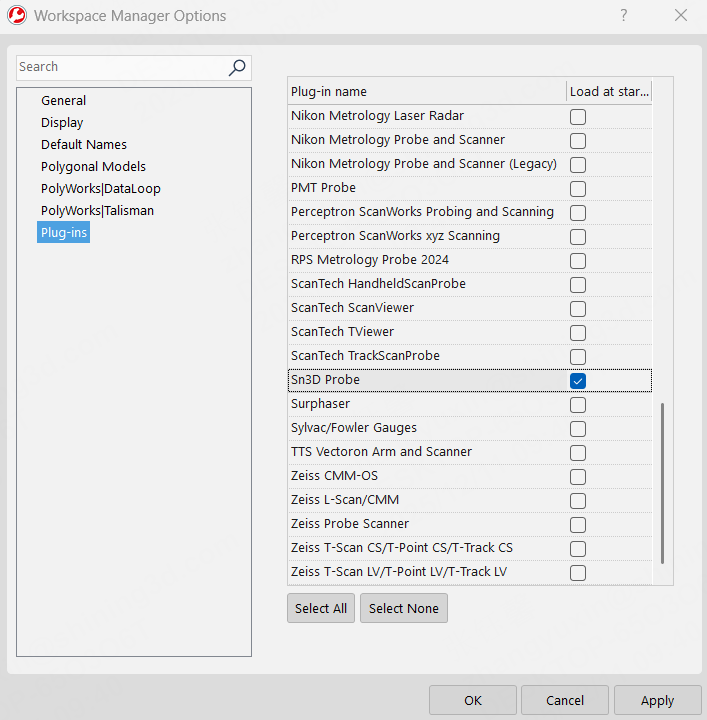
7. Go to Plug-ins tab and make sure Sn3D Probe option is enabled.
If you have any questions about the software, you can contact technical support metrology_support@shining3d.com
Hope you enjoy SHINING 3D Products.