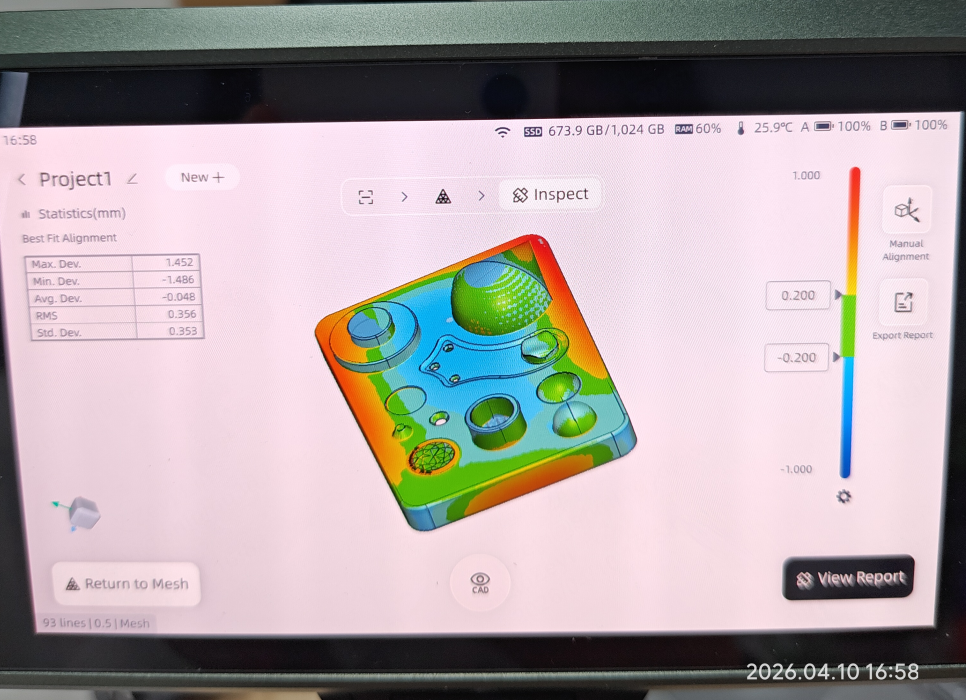
Issue Description
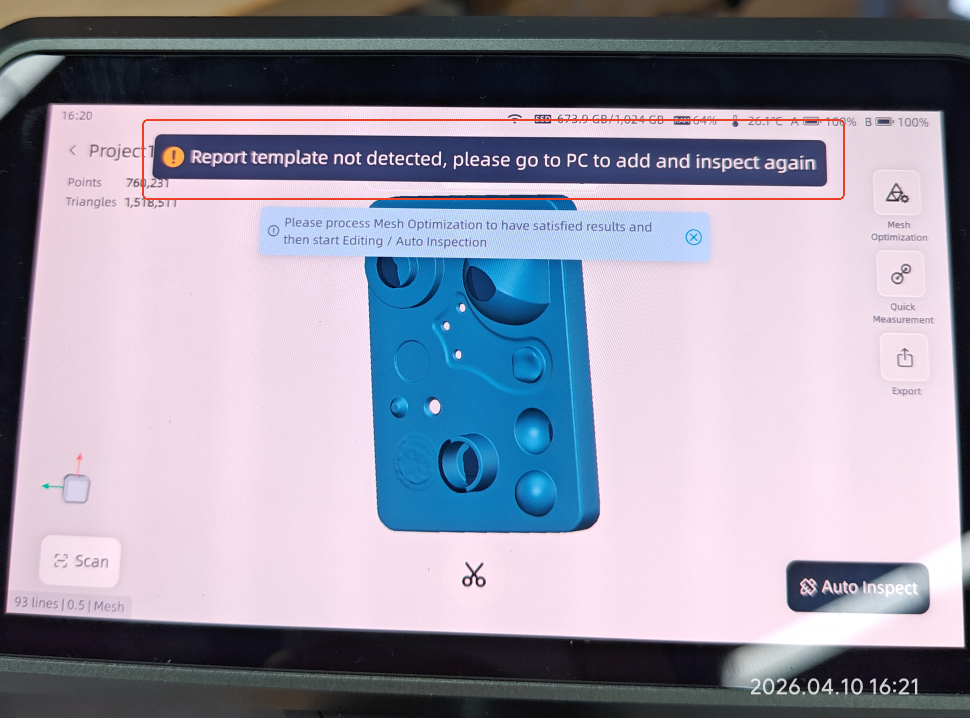
When using the FreeScan Omni as a standalone device, users may encounter the following error message after performing an Auto Inspect operation using a custom template:
Report template not detected, please go to PC to add and inspect again
Root Cause
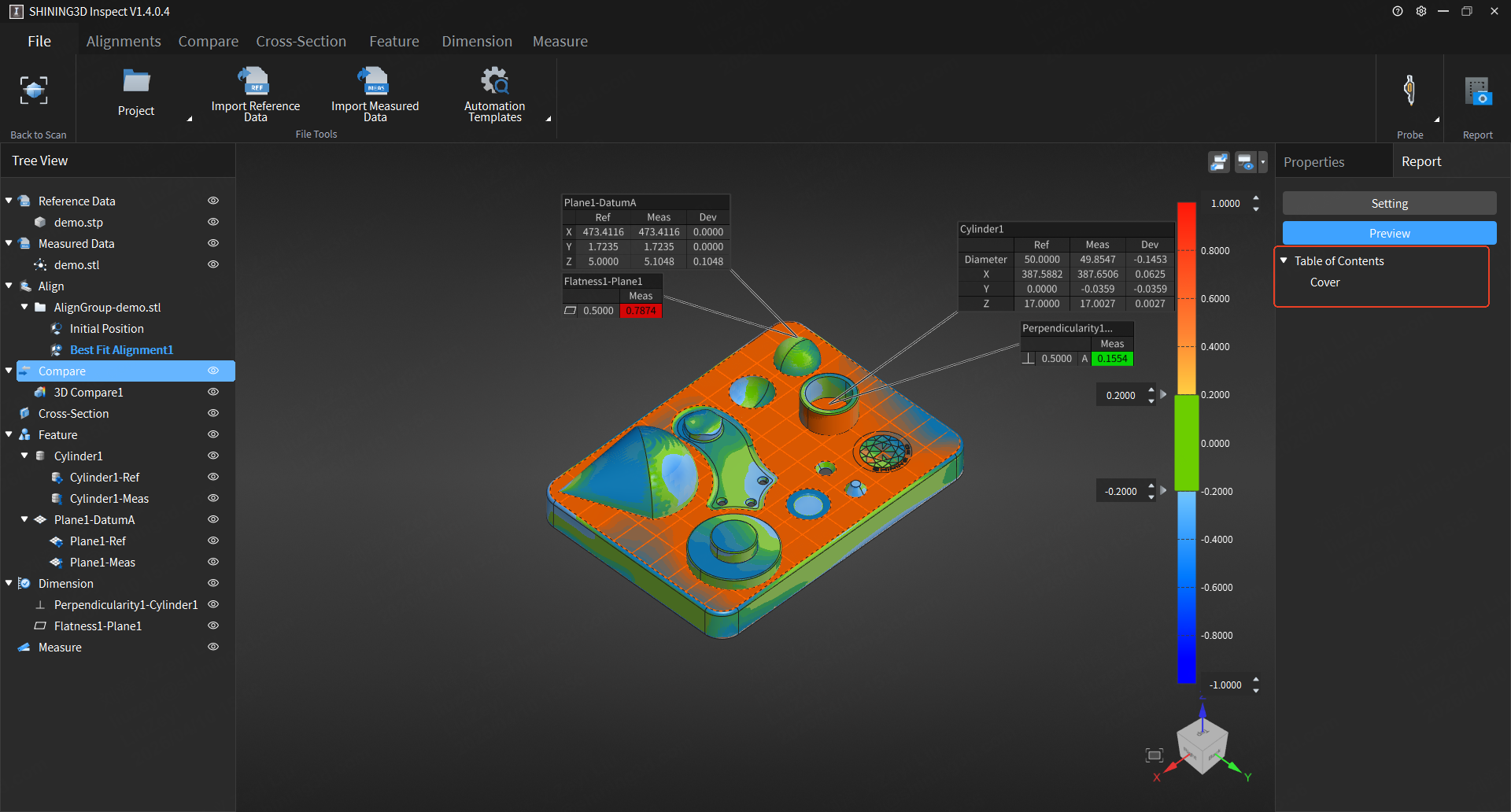
This issue typically arises during the template creation process on the PC software. It indicates that while the template file exists, no inspection feature pages were added to the report TOC. If you inspect the template on the PC, you will likely notice that the Report features section is incomplete, often showing only the Cover page without any other pages:
Solution
To resolve this, you must edit the template on the PC software to include the necessary pages. Please follow these steps:
- Open the problematic template in S3I software.
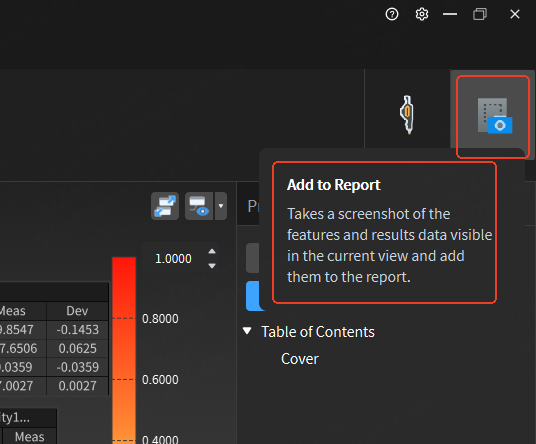
- Navigate to the inspection features you wish to display. For relevant features, you must explicitly click the Add to Report button.
- Ensure that aside from the automatically generated Cover page, you have successfully added specific data pages (e.g., 3D Compare1, Feature + Dimension).
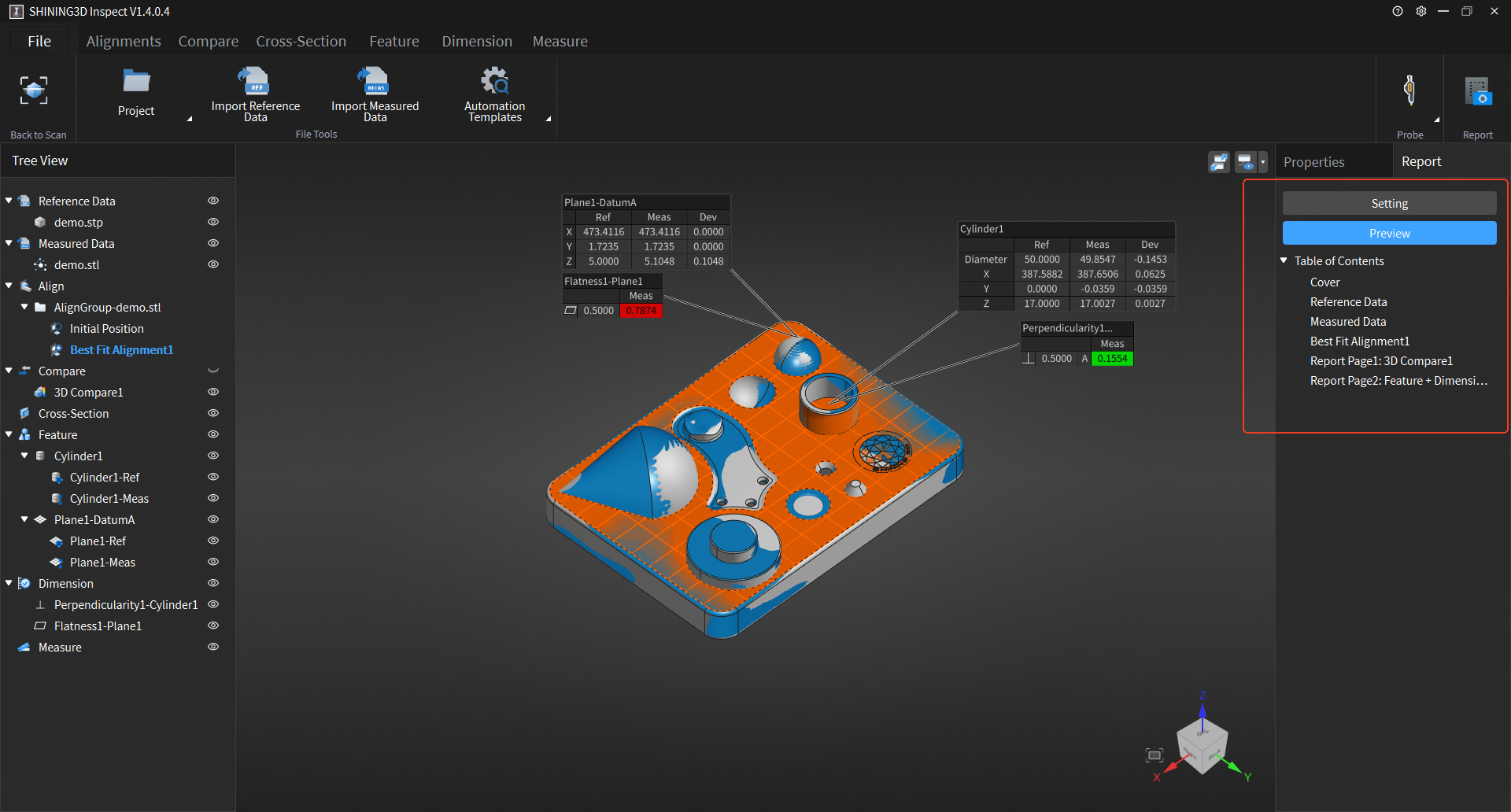
- Once the necessary pages are added, use the Preview function in the software to verify that the report now contains the expected data structure.
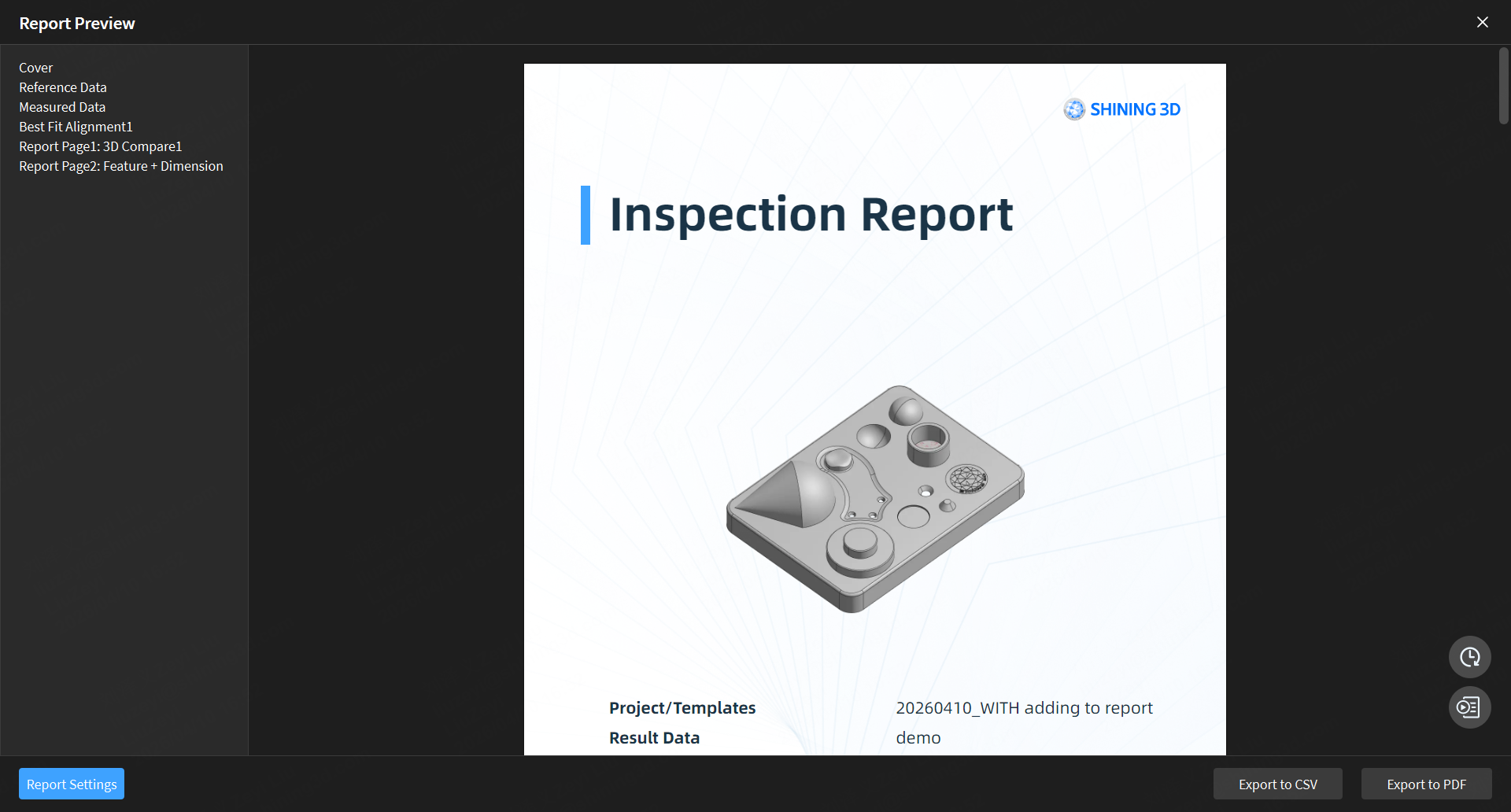
- Save the edited template and import the updated file back into the FreeScan Omni device.
- Run the Auto Inspect function again. The device should now successfully detect the template and generate the report without error.